

Dashboard Overview
Dashboard Overview
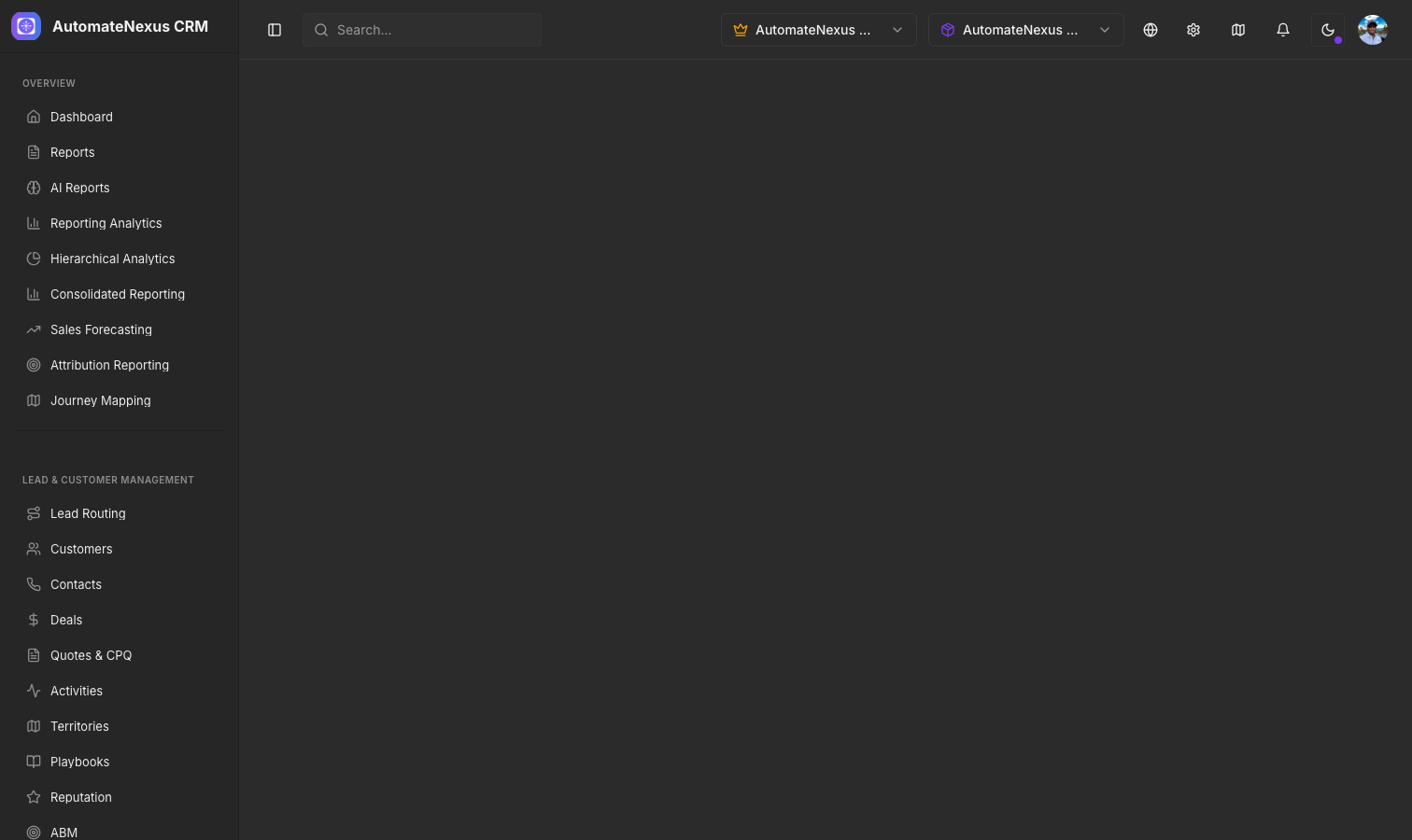
The AutomateNexus CRM Dashboard is your central command center providing an at-a-glance view of your business performance, upcoming activities, AI-powered insights, and quick access to common actions. When you log in the Dashboard is the first screen you see accessible at the root path. This guide provides a detailed breakdown of every widget and component on the Dashboard explains how to customize your view and covers advanced dashboard capabilities.
Dashboard Layout
The Dashboard uses a responsive two-column layout on desktop screens. The left column spanning two-thirds of the width contains your primary data visualizations and operational metrics. The right column one-third width houses the AI assistant upcoming events daily briefing activity timeline quick insights and agent activity feed. On tablet and mobile devices the layout collapses to a single column with widgets stacked vertically.
Widget-by-Widget Breakdown
System Announcements
At the top of the Dashboard the System Announcements banner displays any active platform-wide or organization-specific announcements. These may include scheduled maintenance notices new feature releases or important policy updates from your organization administrators. Announcements can be dismissed individually and will not reappear once dismissed.
Stats Cards Key Performance Indicators
The Stats Cards section sits at the top of the left column and displays four critical KPIs in a horizontal card layout. Each card shows the metric name current value percentage change indicator and a trend arrow. Clicking on any stat card navigates you directly to the relevant detail page.
| Metric | Description | Formula | Links To |
|---|---|---|---|
| Total Customers | The total number of customer records in your current workspace | Count of all customer records. Change = new customers this week / total x 100 | /crm/customers |
| Active Deals | The number of deals currently in your pipeline not yet closed | Count of open deals. Change = new deals this week / active deals x 100 | /crm/deals |
| Pipeline Value | Total monetary value of all active deals displayed in thousands | Sum of deal values for open deals displayed as value/1000 with k suffix | /crm/deals |
| Win Rate | Percentage of deals closed as won versus total closed deals | Won deals / total closed deals x 100 rounded to nearest integer | /crm/deals |
Each stat card displays a trend indicator with a green upward arrow for positive trends a red downward arrow for negative trends or a neutral indicator for no change. Change percentages are calculated based on activity within the current week.
Dashboard Area Chart
Below the Stats Cards the Dashboard Area Chart provides a visual time-series representation of your key metrics over a configurable date range. The chart combines data from multiple sources including deals activities meetings and booking confirmations to show trends over time.
- Hover tooltips - Hover over any point to see the exact value and date.
- Date range selection - View data for the past 7 days 30 days 90 days or a custom range.
- Metric toggling - Click on legend items to show or hide specific data series.
- Responsive sizing - The chart automatically resizes to fill available width.
Dashboard Data Section
The Dashboard Data Section provides tabular views of your most recent and relevant records including:
- Recent Deals - A table showing recently created or updated deals with deal name value stage and assigned owner.
- Recent Customers - Recently added or modified customer records with key contact information.
- Upcoming Tasks - Tasks due soon sorted by due date with status indicators and assignee information.
Each table row is clickable and navigates to the full detail view of that record. The section supports pagination for browsing through larger datasets.
AI Assistant Carrie
The Enhanced Carrie Assistant widget occupies the top of the right column. Carrie is the AI-powered assistant built into AutomateNexus CRM providing:
- Natural language querying - Type questions about your CRM data in plain English and receive instant AI-generated answers.
- Contextual suggestions - Carrie proactively suggests actions based on your current data such as following up with inactive leads or reviewing deals approaching their close date.
- Quick actions - Common tasks can be initiated directly from the assistant such as creating a new customer scheduling a meeting or generating a report.
Upcoming Card
The Upcoming Card displays a consolidated view of your upcoming events pulled from the unified schedule system including:
- Meetings - Scheduled meetings from your calendar with participant names time and meeting link.
- Booking confirmations - Upcoming bookings from the booking system showing client name and scheduled time.
- Task deadlines - Tasks with upcoming due dates showing the task name and time remaining.
Events are sorted chronologically with the nearest upcoming event displayed first. Each item is clickable to view full details or join the meeting.
Daily Brief Card
The Daily Brief Card provides an AI-generated summary of your day compiled from your CRM data:
- Key numbers - A snapshot of new leads deals closed and tasks completed since your last login.
- Priority items - Deals or tasks flagged as high priority requiring immediate attention.
- Follow-up reminders - Customers or deals without recent activity that may need a follow-up.
- Team updates - Summary of team activity including new assignments completed milestones and recent communications.
Activity Timeline
The Activity Timeline provides a chronological feed of recent actions taken within your workspace. Each entry shows:
- Action type - The type of activity such as deal created customer updated email sent task completed or note added.
- Actor - The team member who performed the action displayed with their avatar and name.
- Timestamp - When the action occurred shown as a relative time or absolute date.
- Related record - A link to the customer deal or project associated with the activity.
The timeline auto-refreshes to show the latest activities and serves as an audit trail of workspace activity helping team leads monitor productivity.
Quick Insights
The Quick Insights widget provides AI-generated analytical observations about your business data automatically generated by analyzing patterns:
- Revenue trends - Whether revenue is trending up or down compared to previous periods.
- Pipeline health - Deal pipeline velocity conversion rates and bottleneck stages.
- Customer engagement - Communication frequency and response rates.
- Forecasting signals - Early indicators about whether you are on track to meet revenue targets.
Each insight is presented as a concise card with a summary statement and a link to explore the underlying data.
Agent Activity Feed
The Agent Activity Feed displays actions taken by AI agents and automated workflows within your workspace. When automation workflows execute such as lead assignment email sequences or data enrichment the results appear in this feed providing transparency into automated actions.
Dashboard Quick Actions
The Dashboard header provides quick action buttons for common tasks without navigating away:
- Create Customer - Opens the Create Customer modal to add a new customer record with essential fields.
- Create Deal - Opens the Create Deal modal to add a new deal selecting pipeline stage value and associated customer.
- Send Message - Opens the Send Message modal for composing and sending a message.
- Generate Report - Opens the Generate Report modal to create an instant report with options for report type and date range.
These modals overlay the Dashboard so your context is preserved after completing the action.
Dashboard Customization
Date and Time Filters
Many Dashboard widgets support date filtering. The date range selector offers preset ranges Today This Week This Month This Quarter This Year or custom date ranges. Changing the filter updates all time-sensitive widgets simultaneously.
Workspace Filtering
The Dashboard automatically filters all data based on your currently selected workspace. Switching workspaces refreshes all widgets to display data relevant to the new workspace ensuring metrics are always scoped to your current working context.
Theme and Display Preferences
The Dashboard respects display preferences configured in Settings including light/dark theme mode accent colors and compact mode. In compact mode widget padding and font sizes are reduced to display more information without scrolling.
Advanced Dashboards
Beyond the default Dashboard AutomateNexus provides Advanced Dashboards accessible from Data and Analytics at the route /analytics/dashboards. Advanced Dashboards offer:
- Custom widget selection - Choose from charts tables KPI cards and data visualizations.
- Drag-and-drop layout - Arrange widgets in any grid configuration.
- Multiple dashboard views - Create separate dashboards for Sales Marketing Executive Overview etc.
- Shared dashboards - Share configurations with team members or organization-wide.
- Data source selection - Pull data from customers deals activities projects invoices and custom objects.
- Filter and drill-down - Apply global or per-widget filters. Click data points to drill into underlying records.
Understanding Your KPIs
Customer Acquisition Rate
Tracks how quickly you are adding new customers. The change percentage on the Total Customers stat card represents the ratio of new customers this week to total. Consistent positive percentages indicate steady growth.
Pipeline Velocity
Measures how quickly deals move through your pipeline. Formula: Pipeline Velocity = (Number of Deals x Average Deal Value x Win Rate) / Average Sales Cycle in Days. Monitor Pipeline Value alongside Win Rate to assess velocity.
Win Rate Interpretation
Represents sales effectiveness. Calculated as Won Deals / Total Closed Deals x 100. A rate above 30 percent is generally healthy for B2B. If declining investigate which stages have the highest drop-off using the deal pipeline view.
Revenue Metrics
Pipeline Value represents potential revenue from active deals. For actual revenue performance navigate to Financial Management then Revenue for detailed tracking including recognized deferred and forecasted revenue.
Refreshing Dashboard Data
Dashboard data is loaded on page render and managed with automatic background refetching. Data refreshes on:
- Page load - All widgets fetch fresh data when navigating to the Dashboard.
- Window focus - Data is automatically refetched when switching back to the browser tab.
- Workspace change - Switching workspaces triggers a complete data refresh.
- Manual refresh - Use browser refresh or keyboard shortcut for a complete page reload.
Error handling includes inline fallback components. If a network error occurs loading a widget an error message displays within that widget while the rest remains functional.
Keyboard Shortcuts
| Shortcut | Action |
|---|---|
| Ctrl/Cmd + K | Open the global search and command palette |
| N then C | Open New Customer modal |
| N then D | Open New Deal modal |
| G then D | Navigate to Dashboard home |
| G then S | Navigate to Settings |
| ? | Show keyboard shortcuts help overlay |
Mobile Dashboard Experience
On mobile devices or narrow browser windows the Dashboard adapts responsively:
- Single-column layout - All widgets stack vertically with Stats Cards first then charts data and right-column widgets.
- Touch-friendly elements - Buttons cards and interactive elements sized for touch with adequate tap targets.
- Swipe navigation - Sidebar collapses to a hamburger menu freeing screen space.
- Simplified charts - Charts adapt to narrower widths with adjusted labels and reduced data density.
The mobile experience covers all core functionality though advanced features like drag-and-drop customization are best on desktop.
Related Articles
- Welcome to AutomateNexus CRM - Platform overview and complete sidebar navigation reference.
- Setting Up Your Account - Configure profile workspace and preferences for optimal Dashboard experience.
- User Roles and Permissions - Understand how role-based access affects Dashboard data visibility.
- Deal Pipeline Management - Learn about deal stages and metrics feeding Dashboard KPIs.