

Managing Contacts
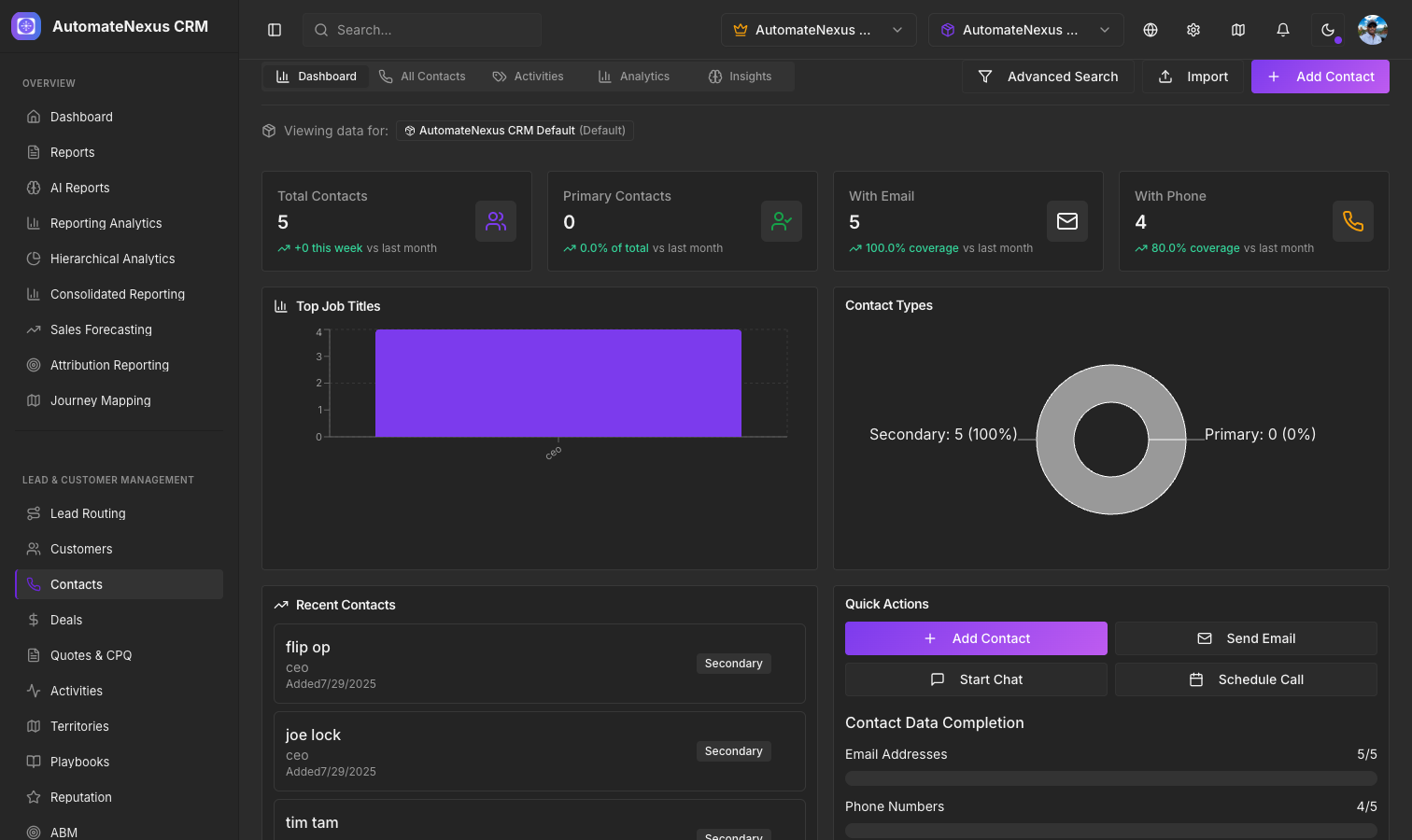
Adding Contacts
There are several ways to add contacts to AutomateNexus CRM:
- Manual Entry — Click the Add Contact button on the Contacts page and fill in the details
- CSV Import — Upload a spreadsheet of contacts via the Data Migration tool
- Form Submissions — Contacts are automatically created when visitors submit forms on your website
- API Integration — Push contacts from external systems via our REST API
- Lead Routing — Inbound leads are automatically created and routed to the appropriate rep
Contact Detail Page
Each contact has a comprehensive detail page showing:
- Basic Info — Name, email, phone, company, job title, and address
- Custom Fields — Any custom fields you have defined for contacts
- Unified Timeline — A chronological feed of every interaction (see Unified Contact Timeline)
- Associated Deals — All deals linked to this contact
- Tasks & Activities — Upcoming and completed tasks related to this contact
- Notes — Free-form notes added by team members
Custom Fields
Extend contact records with custom fields to capture data specific to your business. Navigate to Settings > Custom Fields to create fields of type:
- Text, Number, Date, Dropdown, Multi-select, Checkbox, URL, Email, Phone
Custom fields appear on the contact detail page and in forms automatically.
Searching & Filtering
The Contacts page provides powerful search and filtering:
- Search bar — Search by name, email, phone, or company
- Filters — Filter by status, tags, custom field values, creation date, or assigned rep
- Saved views — Save filter combinations for quick access
Tags & Segments
Organize contacts with tags for quick categorization. Tags can be used to create segments for email campaigns, reporting, and targeted outreach.